DHCP
| Done |
|---|
It allows devices to automatically/dynamically learn their:
- IP Address
- Subnet Mask
- Default Gateway
- DNS Servers
- …
“Client Devices” such as PCs, smartphones and etc., usually rely on DHCP. However, routers, switches, servers and etc., usually are manually configured.
In SOHO networks the router will usually also act as the DHCP Server. However, in large networks it will usually be in a Windows/Linux server.
Lease time → DHCP servers lease IP addresses to devices, and usually they are not permanent. Therefore, the device must give in its IP Address after the Lease Time expires.
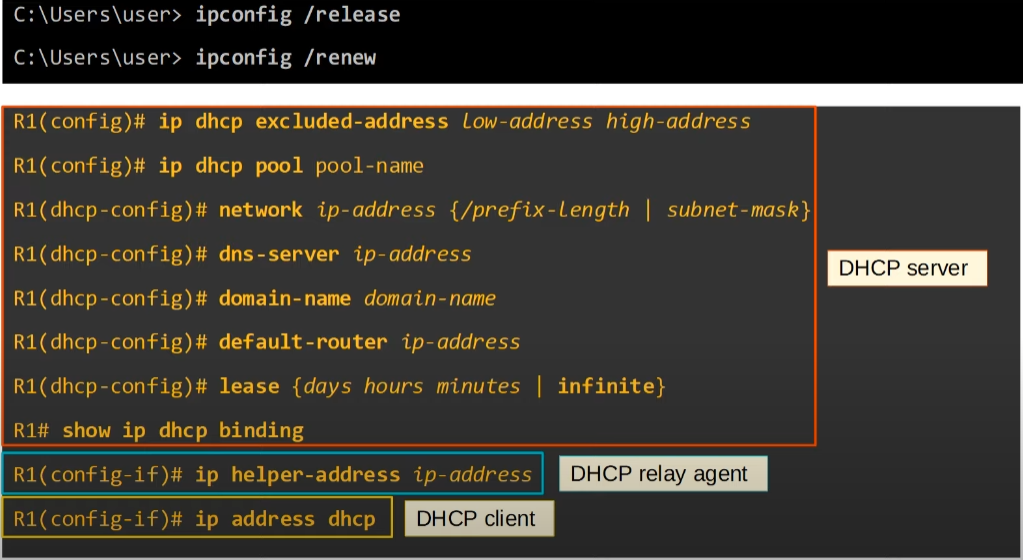
ipconfig /release → It tells Windows to release its IP Address. It does that by sending a DHCP Release message to the DHCP Server. It will stay without configuration.
ipconfig /renew → It asks the DHCP Server for configuration.
- DHCP Server Port → UDP 67
- DHCP client Port → UDP 68
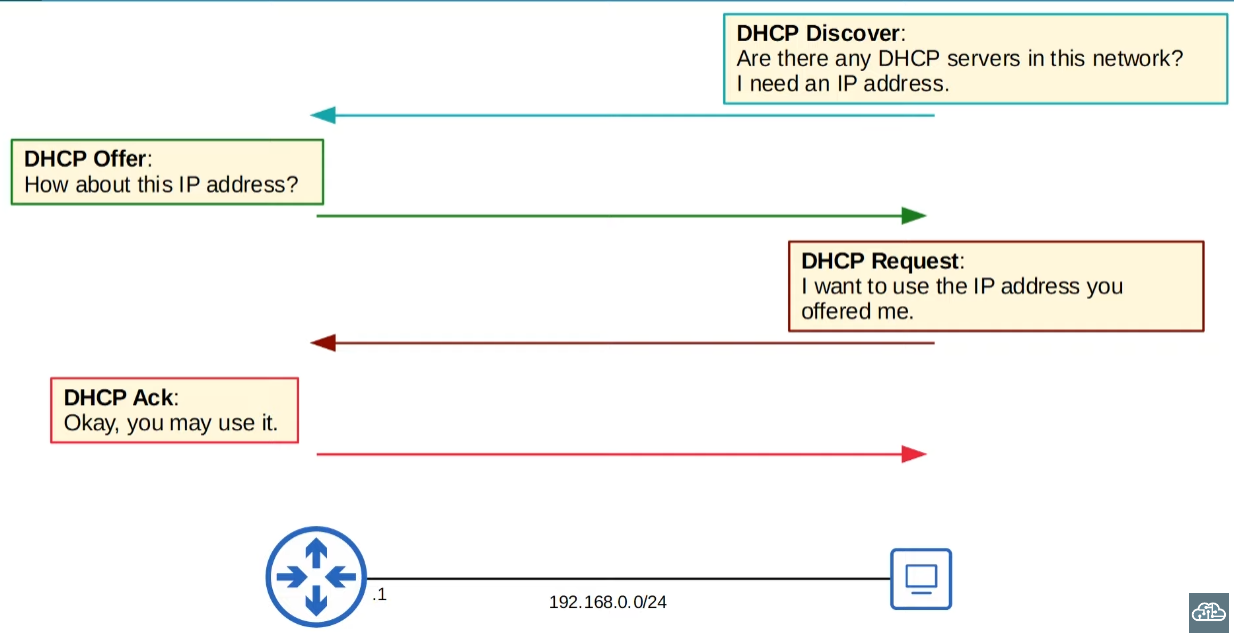
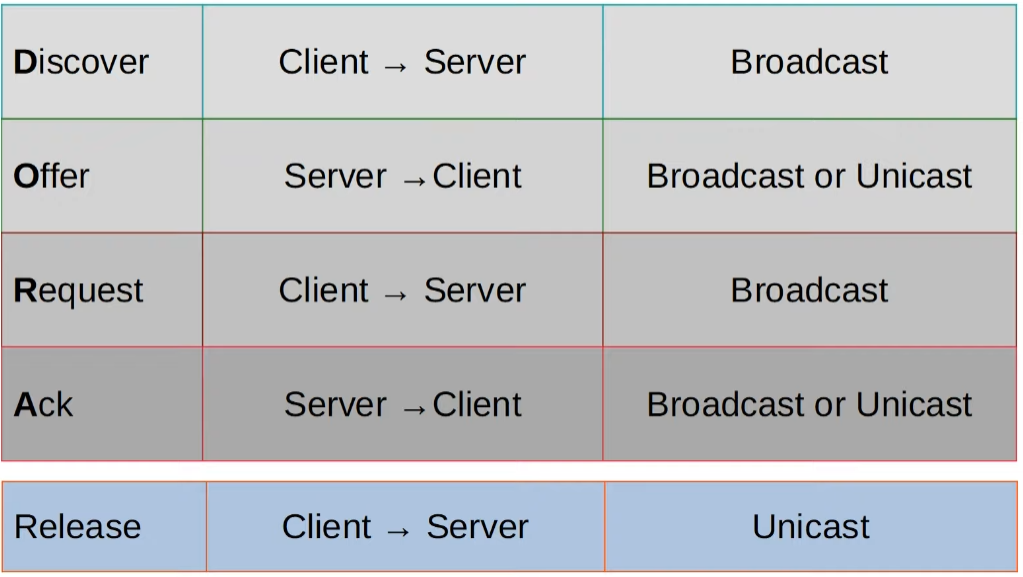
D.O.R.A. messages
Discover
It is the first message, it the DHCP Client asks if there is any DHCP server in the network, saying that it requires an IP Address.
- Broadcast
Offer
In response to the Discover message, the DHCP Server(s) “offer” an IP Address that is available to be used.
- Unicast or Broadcast
Request
It is send by the DHCP Client, saying that it accepted the IP Address and from which DHCP Server.
- Broadcast
Ack
It is a response from the DHCP Server, telling the DHCP Client that it`s okay to use that IP Address.
- Unicast or Broadcast
DHCP Relay Agent
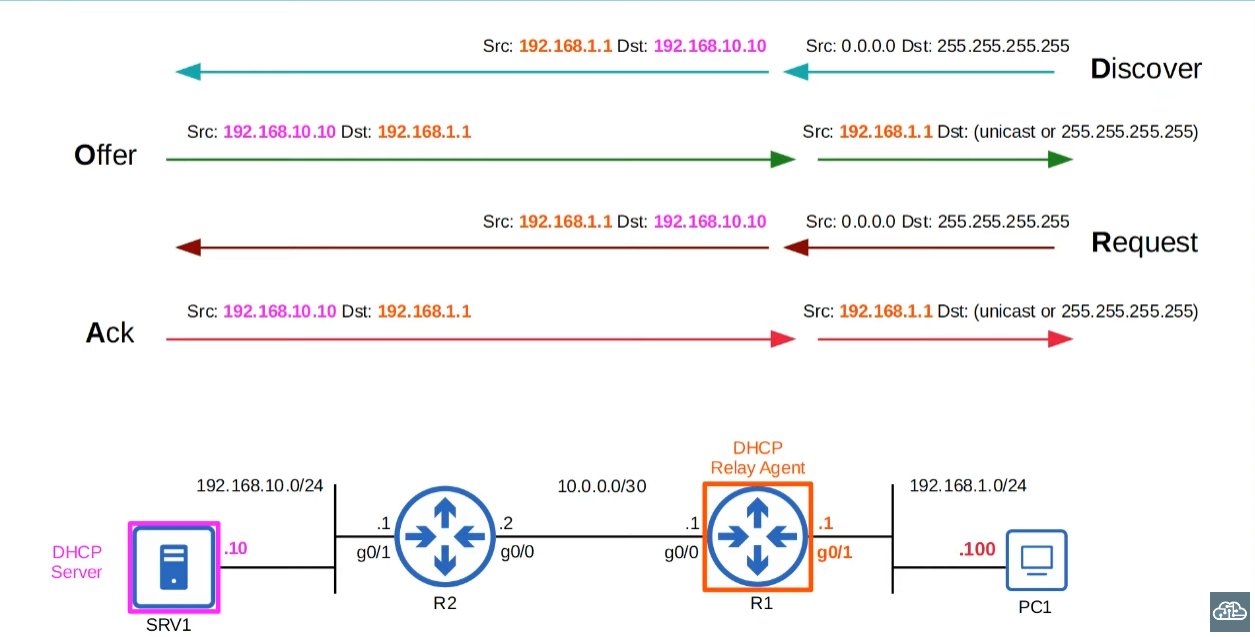
In a large network, the DHCP server will be centralized and can be situated in a different subnet than the possible DHCP client. Therefore, the routers located in the subnets that may have potential DHCP Clients must act as DHCP Relay agents, because broadcast messages (Discover and Request) are not forwarded by routers.
How does it work?
When acting as a DHCP Relay Agent, the router will receive DORA messages and change the IP Header (yes, change the IP Header) to use its own IP Address as the Source (IP Address of the Interface it received it) and in the ‘giaddr’ (Gateway IP Address) field of the DHCP message and the DHCP Server IP Address as the Destination IP Address. It basically turns Broadcast messages from the client into Unicast messages, acting as an intermediary. And the DHCP Server will send an Offer or Ack to the IP address specified in the ‘giaddr’ field.
But how does the DHCP Server knows what subnet the DHCP Client must be configured to?
It knows by the Relay Agent IP Address as the source, it being that subnet`s interface IP Address.
DHCP Server configuration in Cisco IOS
Exclude IP Addresses from the pools
This command excludes a range of IP Addresses from being offered by the DHCP Server.
configure terminal
ip dhcp excluded-address {first-ip-address} {last-ip-address}
Enable/Disable DHCP message processing
configure terminal
[no] service dhcp
Create DHCP Pool
It creates a pool and labels it. This pool creates a collection of information that will be offered to the DHCP Client.
configure terminal
ip dhcp pool {pool-name}
This also enters DHCP Config mode for that Pool.
Specify the Subnet and the Mask
Router(dhcp-config)#network {subnet-id} {subnet-mask | prefix length}Specify the Default Gateway
Router(dhcp-config)#default-router {ip-address}Specify the DNS Server
Router(dhcp-config)#dns-server {ip-address}Specify the Domain name
Router(dhcp-config)#domain-name {name}Configure Lease Time
Router(dhcp-config)#lease {{day} [hour] [minutes] | infinite}Clear Bindings
clear ip dhcp bindings *DHCP Relay Configuration
- Enter Interface configuration mode
configure terminal
interface g0/0 // It has to be the interface on the subnet that will receive the IP Addresses offered by the DHCP Server
- Enable DHCP Relay and point to the DHCP Server
ip helper-address {dhcp-server-ip}
DHCP Client Configuration
configure terminal
interface {interface-id}
ip address dhcp
Show commands
Show all the DHCP Clients
It shows information about each DHCP Client that was assigned an IP Address
show ip dhcp bindingShow the Pools settings
show ip dhcp poolShow Operational Statistics for DHCP Server
show ip dhcp server statisticsVerify the Relay configuration
show ip interface {interface-id}SUMMARY
Curiosities
DHCP Request without Discover and Offer
The DHCP process usually begins with a DHCPDISCOVER message from the client when it first connects to the network. However, a client may also directly send a DHCPREQUEST message under certain circumstances. Let's consider a few scenarios:
- Initial DHCP process: A new client or a client on a new network will start with a DHCPDISCOVER message, as it doesn't yet have a valid IP address for the current network.
- Renewing a lease: When a client is trying to renew its lease, it can directly send a DHCPREQUEST to the server, requesting to extend its lease on the current IP address. This request is sent unicast directly to the server that granted the lease, rather than as a broadcast.
- Rebooting or reconnecting: If a client device reboots or temporarily disconnects from the network, but it's still within its lease period, it may send a DHCPREQUEST message directly to the server upon reconnection, requesting the same IP address it had before.
- Receiving a NACK or no response: If the client receives a DHCP NACK in response to its DHCPREQUEST, or if it doesn't receive a response after a certain period of time, it will start the process over with a DHCPDISCOVER message.
So, while the process usually starts with DHCPDISCOVER, there are situations where a client might send a DHCPREQUEST without sending a DHCPDISCOVER first, particularly when renewing a lease or after a temporary disconnection. However, if the client's request is denied (with a DHCP NACK) or ignored, it will then revert to sending a DHCPDISCOVER to start the process anew.